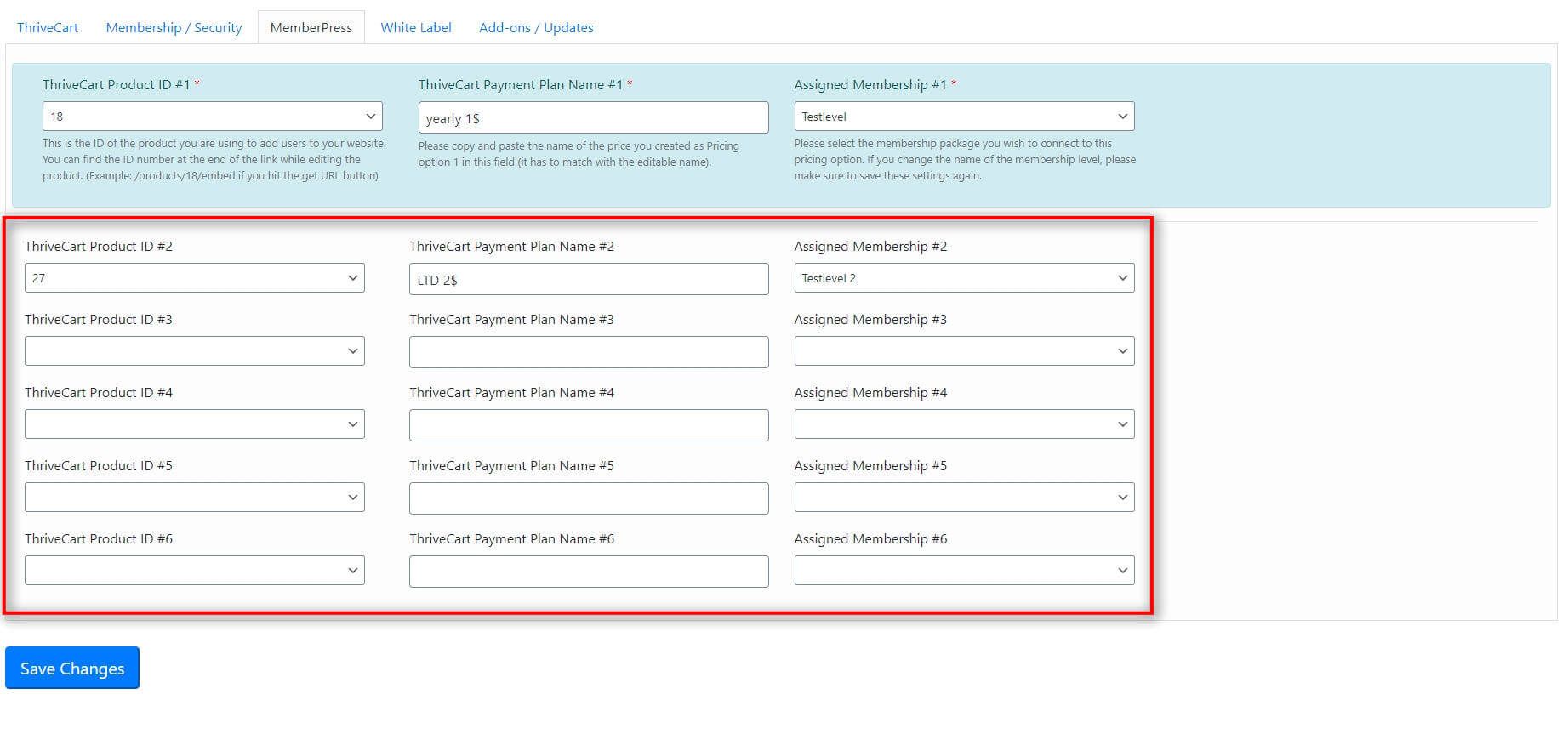


In this tutorial, I would like to show you how can you assign different MemberPress membership levels per ThriveCart carts.
To get started, let’s install and activate MemberPress. After this go to the Add-ons tab under Cart2WP to install and activate the MemberPress add-on too.
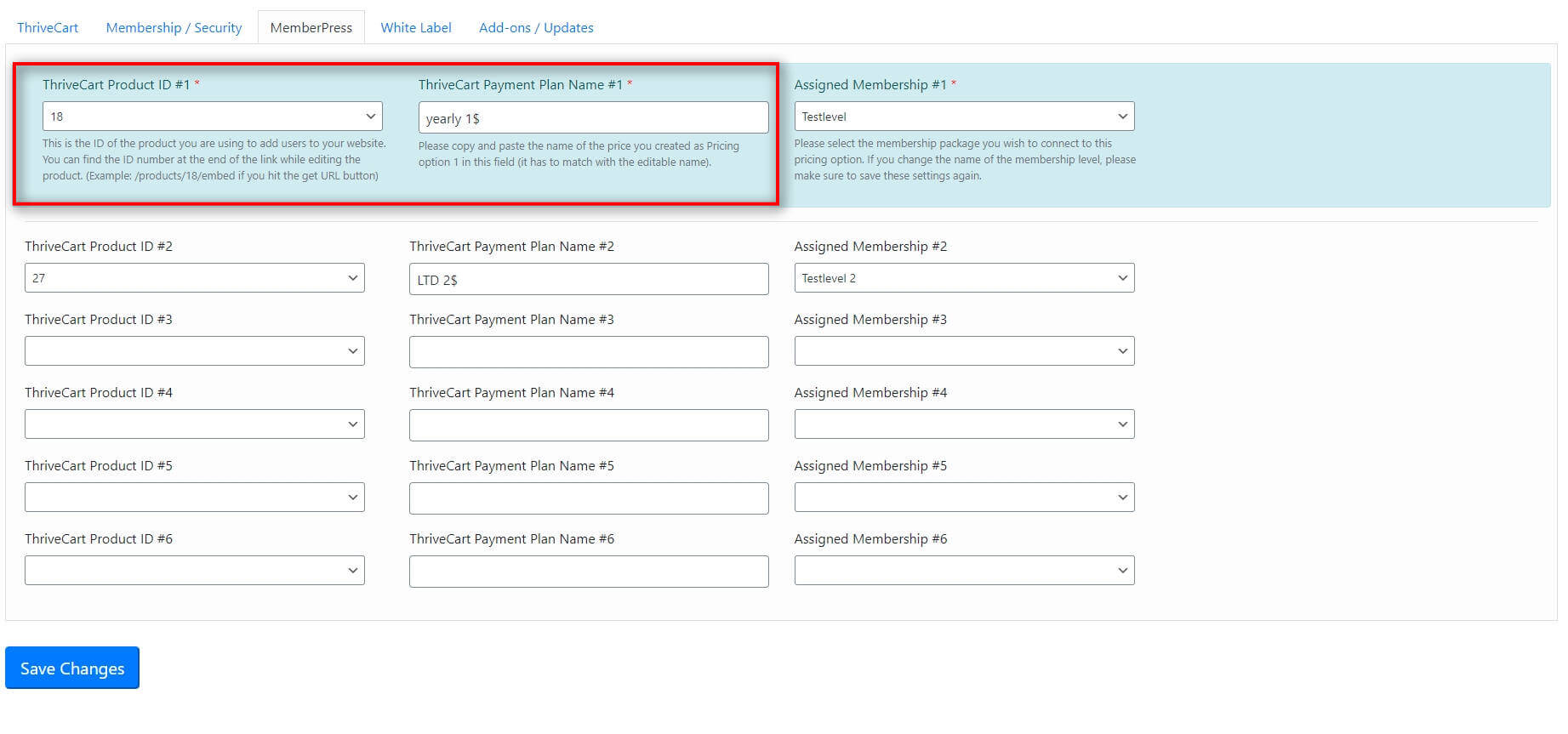
Under the MemberPress settings tab, you will see multiple options available. Let’s start with the first two: the product ID and pricing option.
It may sound tricky but this is an easy step too. We will need to copy and paste in the name of the pricing option and assign a membership level to it 🙂
Open a new browser tab and navigate to your ThriveCart product (if available in test mode already). Edit the pricing options and on the second stage it will give you the option to set a name for that particular pricing option.
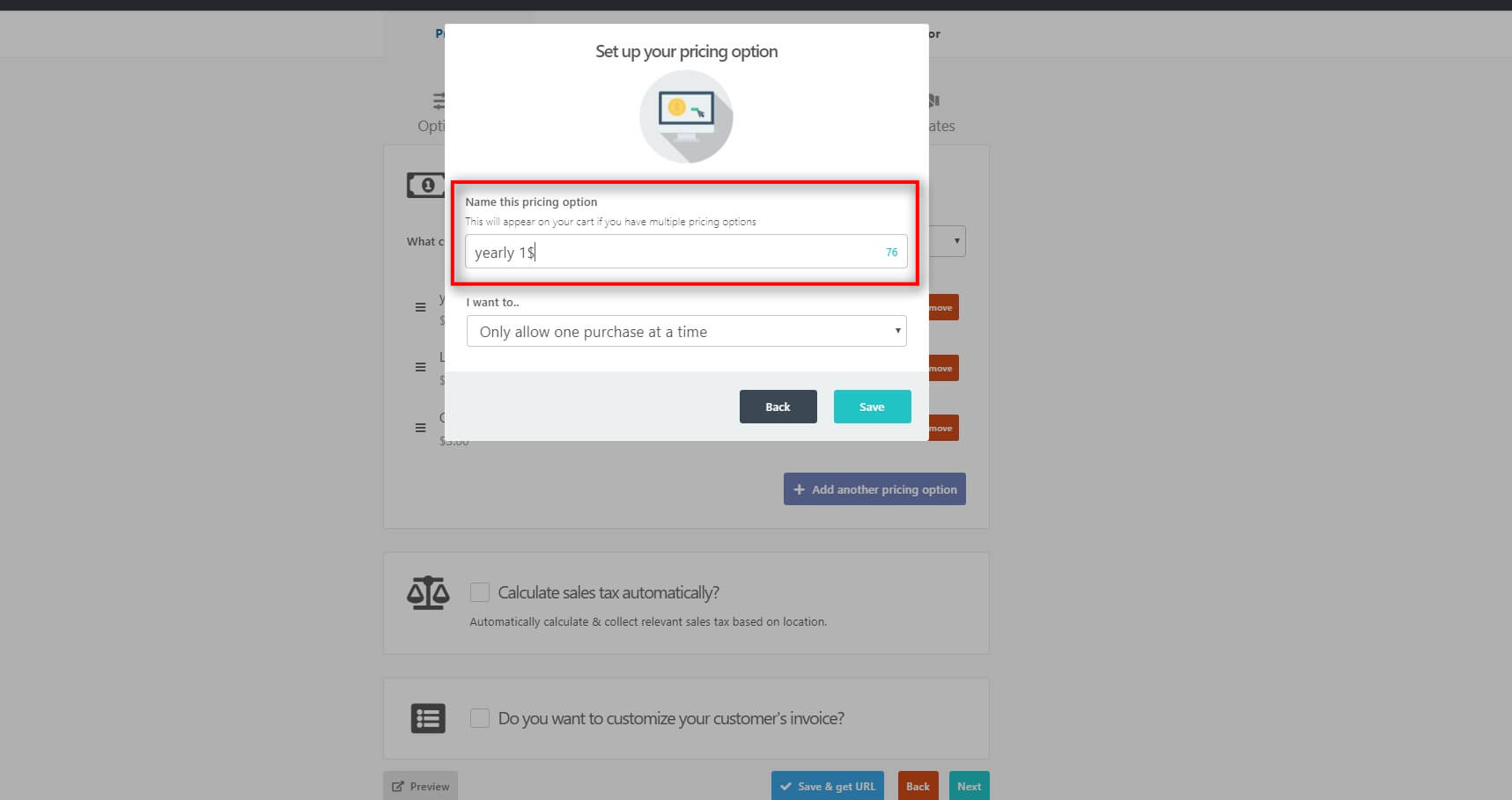
Copy this and paste it into the field where we ask for this and use the dropdown menu to select the correct product (cart) ID option:
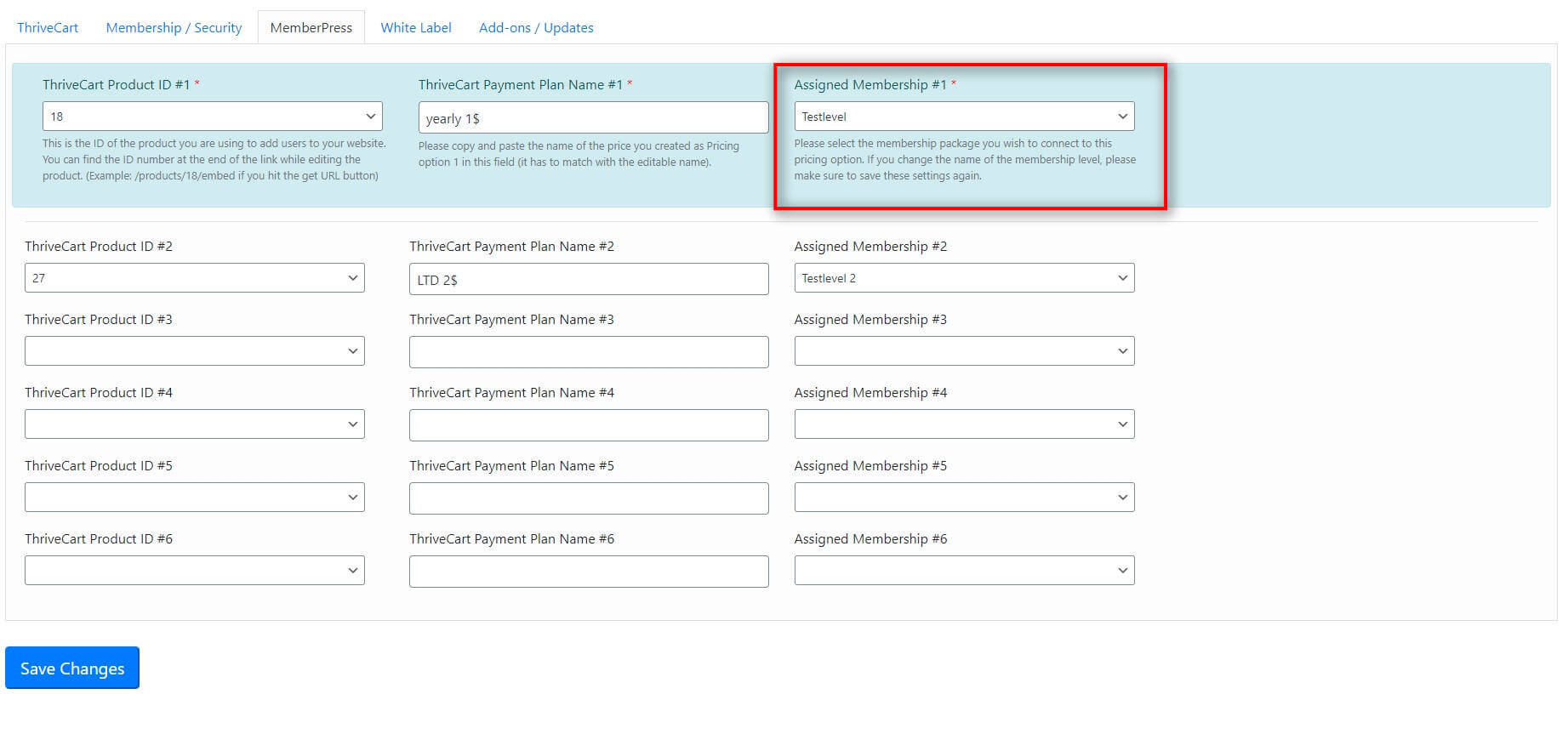
 Select the membership you wish to assign to this cart.
 You can replicate this for up to six different product IDs.