
In this tutorial, I would like to show you how we deliver course content to your students in a very easy way using LifterLMS.
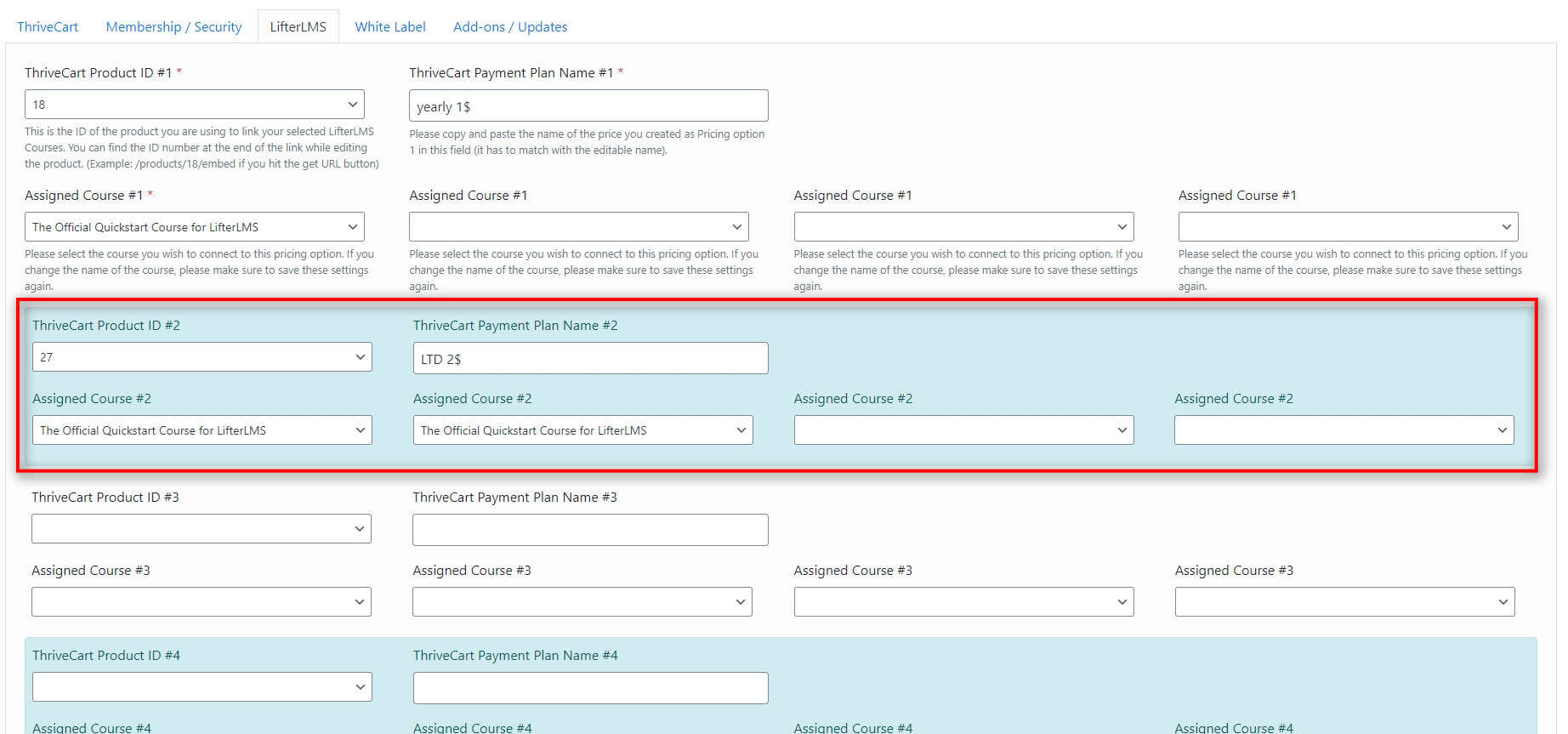
To automate the course enrolment for your customers, let’s go to the Cart2WP settings menu. Install and active the LifterLMS add-on and got to the LifterLMS settings tab.
It may sound tricky but this is an easy step too. We will need to copy and paste in the name of the pricing option and assign the correct course to it 🙂
Open a new browser tab and navigate to your ThriveCart product (if available in test mode already). Edit the pricing options and on the second stage it will give you the option to set a name for that particular pricing option.
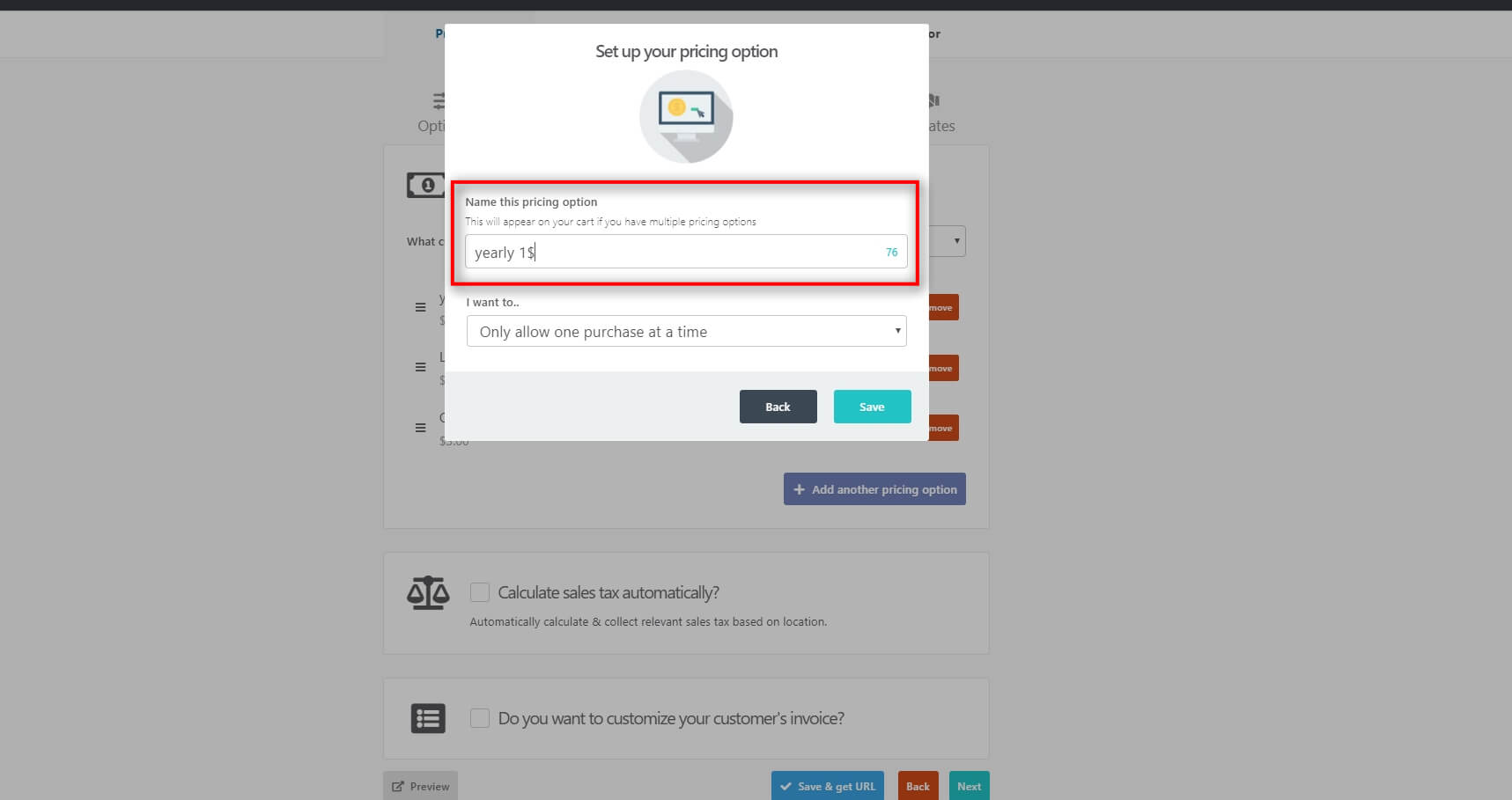
Copy this and paste it into the field where we ask for this and choose the product ID as well from the dropdown menu.
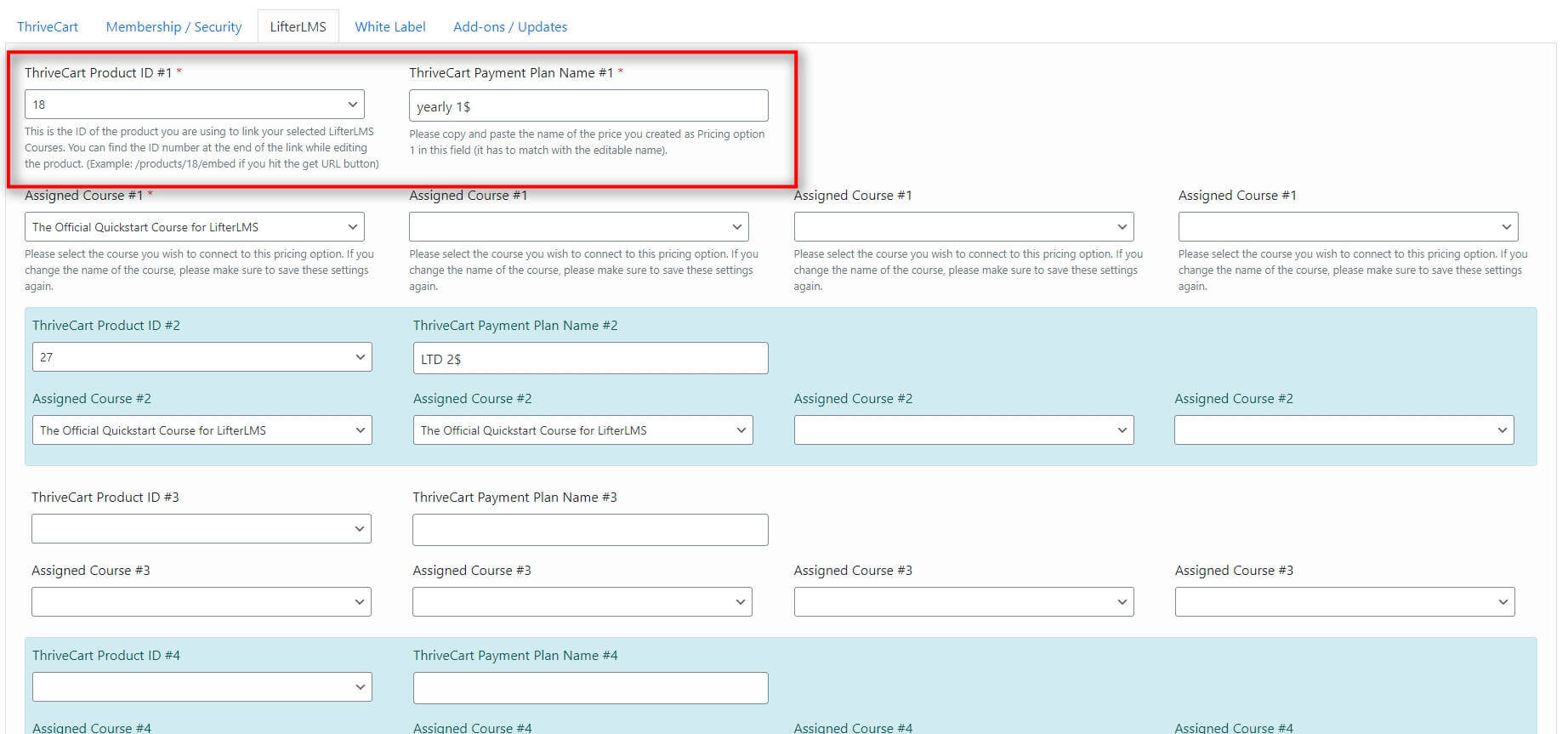
Next, choose the courses you wish to assign to these customers:
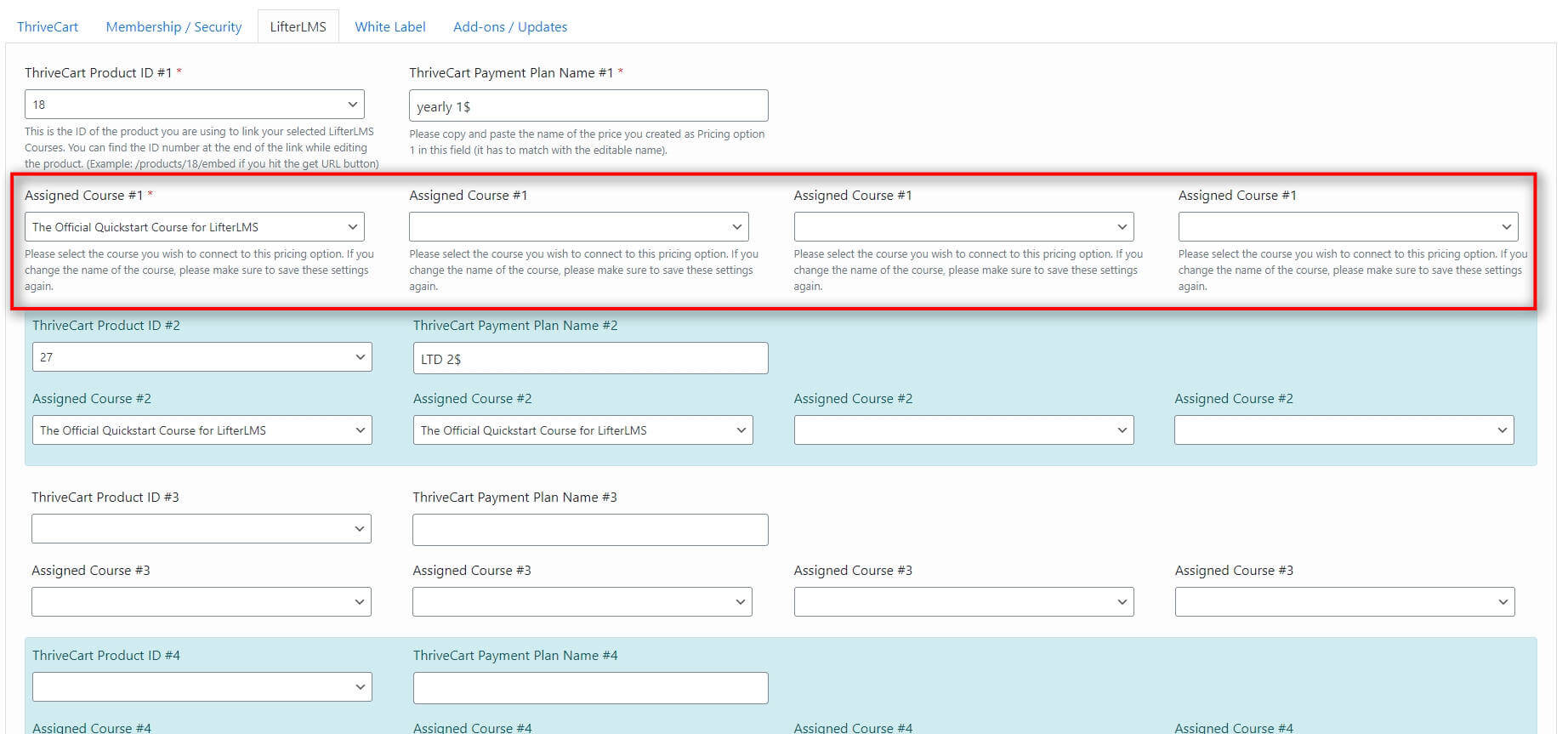
As you can see you can auto-enrol a customer to up to four courses per product (cart) ID. You can replicate these steps to add up to six options to the mix if needed. For example you have two pricing option: $99 for Course A or pay $147 for Course A and B: